AI ছবি সুন্দর করছেন, কিন্তু আপনাকে কি আর আপনার মতো দেখাচ্ছে?
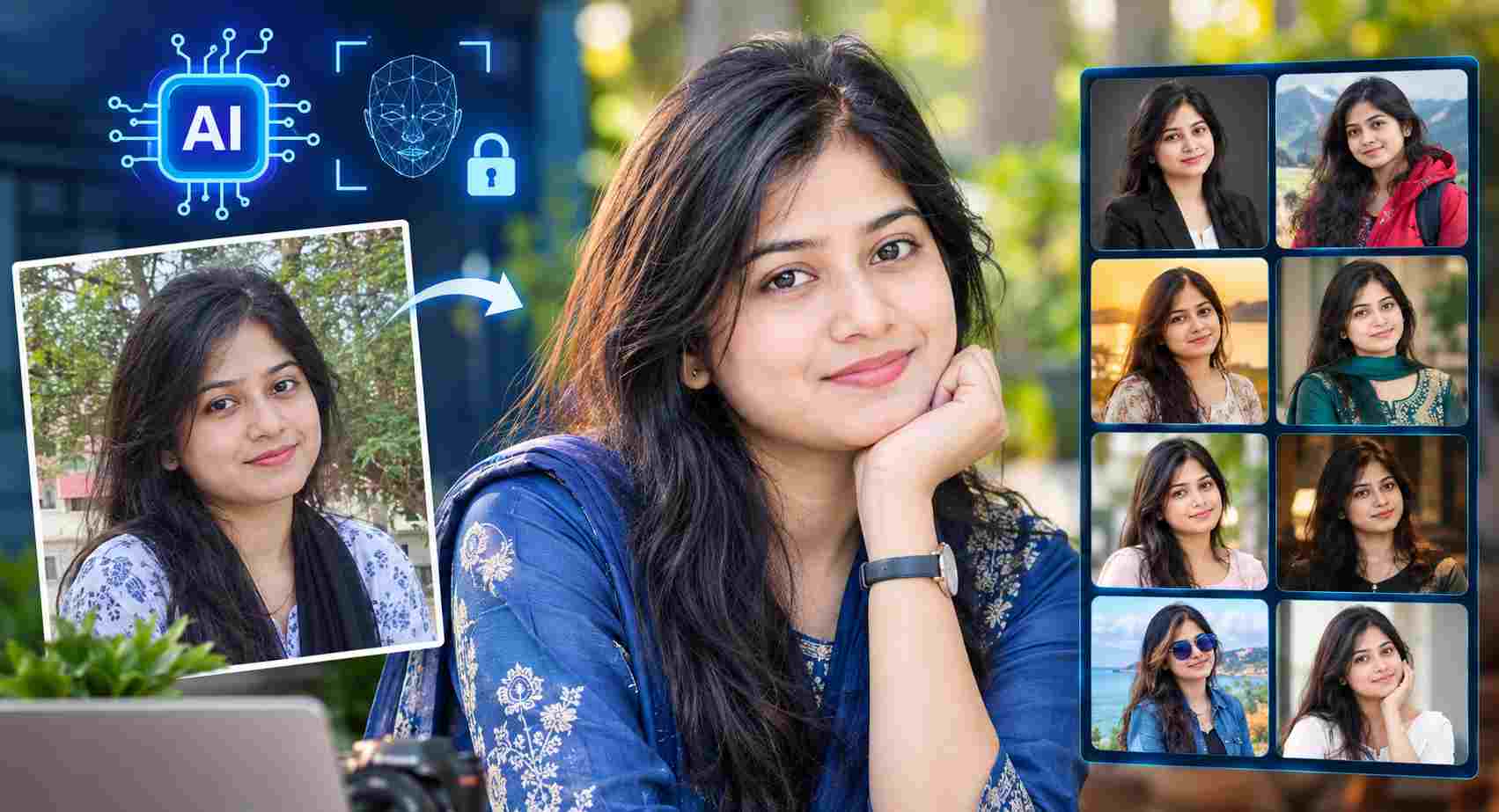
বর্তমানে AI দিয়ে ছবি এডিট করা আগের চেয়ে অনেক সহজ। একটি সাধারণ ছবিকে কয়েক সেকেন্ডের মধ্যে সিনেমাটিক পোর্ট্রেট, প্রফেশনাল হেডশট, স্টুডিও ফটো কিংবা ট্রাভেল ফটোগ্রাফিতে রূপান্তর করা যায়। কিন্তু সমস্যা হলো, অনেক সময় AI ছবির ব্যাকগ্রাউন্ড, পোশাক ও আলো পরিবর্তন করতে গিয়ে মানুষের মুখও বদলে ফেলে।
চোখের আকৃতি পাল্টে যায়, নাকের গঠন অন্য রকম হয়ে যায়, ঠোঁটের আকার পরিবর্তিত হয় কিংবা মুখের সামগ্রিক বৈশিষ্ট্য এমনভাবে বদলে যায় যে ছবির মানুষটিকে আর আগের মতো চেনা যায় না।
বিশেষ করে যারা ফেসবুক, ইনস্টাগ্রাম, ইউটিউব কিংবা ব্যক্তিগত ব্লগের জন্য AI দিয়ে ছবি তৈরি করেন, তাদের কাছে এটি বেশ বিরক্তিকর সমস্যা।
তবে ভালো খবর হলো, সঠিক নির্দেশনা বা Prompt ব্যবহার করলে মুখের পরিচিত বৈশিষ্ট্য অক্ষুণ্ণ রাখার সম্ভাবনা অনেকটাই বাড়ানো যায়।
এই ব্লগে থাকছে এমন ১০টি Powerful AI Photo Editing Prompt, যেগুলো ব্যবহার করে ছবির মুখ অপরিবর্তিত রাখার পাশাপাশি ব্যাকগ্রাউন্ড, আলো, পোশাক ও ছবির সামগ্রিক সৌন্দর্য উন্নত করার চেষ্টা করতে পারবেন।
AI Photo Editing-এ মুখ বদলে যায় কেন?
AI দিয়ে ছবি এডিট করার সময় মুখ পরিবর্তিত হওয়ার কয়েকটি সাধারণ কারণ রয়েছে।
১. মুখের পরিচয় ধরে রাখার নির্দেশনা না থাকা: শুধু “Make this photo beautiful” বা “Make it cinematic” লিখলে AI ছবির মানুষটিকে নতুন করে তৈরি করার চেষ্টা করতে পারে।
২. অতিরিক্ত পরিবর্তনের নির্দেশনা: মুখ, বয়স, চুল, অভিব্যক্তি ও পোশাক একসঙ্গে অনেক বেশি পরিবর্তন করতে বললে মূল চেহারা ধরে রাখা কঠিন হতে পারে।
৩. দুর্বল বা অস্পষ্ট রেফারেন্স ছবি: ছবিটি ঝাপসা, কম রেজল্যুশনের কিংবা মুখ আংশিক ঢাকা থাকলে AI মুখের বৈশিষ্ট্য ভুলভাবে অনুমান করতে পারে।
৪. টুলের সীমাবদ্ধতা: সব AI ইমেজ এডিটর একইভাবে পরিচয় ধরে রাখতে পারে না। কোনো কোনো টুলে Face Preservation বা Reference Image-এর সুবিধা থাকলেও অন্য টুলে তা সীমিত হতে পারে।
৫. নতুন করে ছবি তৈরি করা: বিদ্যমান ছবির নির্দিষ্ট অংশ সম্পাদনার পরিবর্তে পুরো ছবি নতুন করে জেনারেট করলে মুখের বৈশিষ্ট্য বদলে যাওয়ার ঝুঁকি বাড়তে পারে।
এই সমস্যাগুলো কমানোর জন্য Prompt-এ স্পষ্টভাবে উল্লেখ করতে হবে যে মুখের পরিচয় ও স্বাভাবিক বৈশিষ্ট্য অপরিবর্তিত রেখে কেবল নির্দিষ্ট অংশ সম্পাদনা করতে হবে।
Face একদম ঠিক রেখে AI Photo Edit করার ১০টি Powerful Prompt
নিচের Prompt-গুলো ইংরেজিতে দেওয়া হয়েছে, কারণ অনেক AI ইমেজ টুলে ইংরেজি নির্দেশনা ভালোভাবে কাজ করতে পারে। তবে ফলাফল নির্ভর করবে ব্যবহৃত টুল, ছবির মান ও সম্পাদনার ধরনের ওপর।
১. মুখ অপরিবর্তিত রেখে ছবির সামগ্রিক সৌন্দর্য বাড়ানোর Prompt
আপনি যদি ছবির চেহারা না বদলে শুধু ছবিটিকে আরও সুন্দর, পরিষ্কার ও প্রফেশনাল করতে চান, তাহলে এই Prompt ব্যবহার করতে পারেন।
Prompt:
“Edit the uploaded photo while preserving the person's exact identity and recognizable facial features. Keep the original face shape, eyes, nose, lips, skin tone, facial proportions, and natural expression unchanged. Improve overall image quality, lighting, sharpness, colors, and clarity. Keep the person looking exactly like the original photograph. Do not regenerate or redesign the face. Make only subtle, realistic enhancements.”
কখন ব্যবহার করবেন?
- সাধারণ সেলফি সুন্দর করার জন্য।
- পুরোনো ছবির আলো ও রং উন্নত করতে।
- সোশ্যাল মিডিয়ায় ব্যবহারের জন্য ছবি প্রস্তুত করতে।
২. Face ঠিক রেখে Professional Studio Portrait তৈরির Prompt
সাধারণ ছবি থেকে প্রফেশনাল স্টুডিও পোর্ট্রেট তৈরি করতে চাইলে এই Prompt কাজে লাগতে পারে।
Prompt:
“Transform the uploaded photo into a professional studio portrait. Preserve the person's original identity, exact facial structure, eye shape, nose, lips, skin tone, and natural expression. Do not alter the face or make the person look like someone else. Improve the lighting with soft studio illumination, add a clean professional background, and enhance image clarity. Keep realistic skin texture and natural proportions.”
কখন ব্যবহার করবেন?
- লিংকডইন প্রোফাইল ছবি।
- চাকরির আবেদন বা পেশাগত পরিচিতির ছবি।
- ব্যক্তিগত ওয়েবসাইটের প্রোফাইল পোর্ট্রেট।
৩. মুখ না বদলে Cinematic Photo তৈরির Prompt
আপনার ছবিকে সিনেমার দৃশ্যের মতো আকর্ষণীয় করতে চান? তাহলে এই Prompt ব্যবহার করতে পারেন।
Prompt:
“Give this photo a cinematic, professional color grade while preserving the person's exact facial identity. Keep the original face shape, eyes, nose, lips, expression, and skin tone unchanged. Add cinematic lighting, realistic shadows, subtle background depth, rich but natural colors, and a film-like atmosphere. Do not modify facial features, replace the face, or apply artificial beauty filters. Maintain photorealism.”
কখন ব্যবহার করবেন?
- সিনেমাটিক প্রোফাইল ছবি তৈরিতে।
- ফেসবুক ও ইনস্টাগ্রামের জন্য পোর্ট্রেট এডিট করতে।
- গল্প, রিলস ও ভিডিওর কভার ছবিতে।
৪. শুধু Background পরিবর্তন, মুখ থাকবে আগের মতো
অনেক সময় ছবির ব্যাকগ্রাউন্ড ভালো না হলেও ব্যক্তির মুখ ও পোশাক ঠিক থাকে। সেক্ষেত্রে পুরো ছবি পরিবর্তন না করে শুধু ব্যাকগ্রাউন্ড এডিট করাই ভালো।
Prompt:
“Replace only the background of the uploaded photo with a beautiful, realistic outdoor setting. Preserve the person's original face and identity exactly as shown in the source image. Do not alter the face, hairstyle, skin tone, expression, body shape, or clothing. Keep the person unchanged and edit only the background. Match the lighting, perspective, shadows, and depth of field naturally.”
কখন ব্যবহার করবেন?
- সাধারণ ছবিকে প্রাকৃতিক দৃশ্যের সামনে দেখাতে।
- ভ্রমণের ছবি আরও আকর্ষণীয় করতে।
- স্টুডিও বা ঘরের ব্যাকগ্রাউন্ড পরিবর্তন করতে।
বিশেষ টিপস: আপনার AI টুলে Mask বা Select Area সুবিধা থাকলে শুধু ব্যাকগ্রাউন্ড নির্বাচন করুন। এতে মুখে অনাকাঙ্ক্ষিত পরিবর্তনের ঝুঁকি কমতে পারে।
৫. মুখ ঠিক রেখে পোশাক পরিবর্তনের Prompt
ছবিতে নিজের মুখ ঠিক রেখে পোশাক পরিবর্তন করতে চাইলে এই Prompt ব্যবহার করতে পারেন।
Prompt:
“Change only the person's clothing to an elegant, well-fitted formal outfit. Preserve the original face, identity, facial proportions, eyes, nose, lips, skin tone, hairstyle, and expression. Do not regenerate or modify the face. Keep the person's original body proportions and pose. Make the new clothing realistic, with natural fabric texture, folds, lighting, and shadows. Leave all other parts of the image unchanged.”
কখন ব্যবহার করবেন?
- সাধারণ ছবি থেকে ফরমাল লুক তৈরি করতে।
- শার্ট, ব্লেজার বা স্যুটের লুক পরীক্ষা করতে।
- প্রফেশনাল প্রোফাইল ছবি তৈরি করতে।
মনে রাখবেন, পোশাক পরিবর্তনের সময় AI কখনো কখনো শরীরের আকৃতি বা হাতের অবস্থানও বদলে দিতে পারে। তাই Prompt-এ সেগুলো অপরিবর্তিত রাখার নির্দেশনাও দেওয়া জরুরি।
৬. Face ঠিক রেখে Natural Skin Retouch করার Prompt
অনেকেই ত্বক পরিষ্কার ও উজ্জ্বল করতে চান। কিন্তু অতিরিক্ত বিউটি ফিল্টারের কারণে মুখের স্বাভাবিক গঠন হারিয়ে যায়।
এই সমস্যা কমাতে ব্যবহার করুন:
Prompt:
“Perform subtle, natural skin retouching on the uploaded portrait while preserving the person's exact identity and facial features. Keep the original face shape, eyes, nose, lips, expression, and skin tone unchanged. Gently reduce temporary blemishes and uneven lighting while retaining realistic pores, skin texture, and natural details. Do not whiten the skin, reshape the face, enlarge the eyes, slim the nose, or apply a plastic-looking beauty filter.”
কখন ব্যবহার করবেন?
- সেলফির ছোটখাটো দাগ কমাতে।
- ছবির ত্বকের আলো ও টোন উন্নত করতে।
- অতিরিক্ত ফিল্টার ছাড়া স্বাভাবিক পোর্ট্রেট তৈরি করতে।
৭. মুখ অপরিবর্তিত রেখে ছবিকে DSLR-এর মতো করার Prompt
মোবাইলে তোলা ছবিকেও DSLR ক্যামেরায় তোলা পোর্ট্রেটের মতো দেখাতে চাইলে এই Prompt ব্যবহার করতে পারেন।
Prompt:
“Enhance this photo to resemble a high-quality DSLR portrait. Preserve the person's exact identity and original facial features, including face shape, eyes, nose, lips, and expression. Improve focus, exposure, dynamic range, natural color reproduction, and realistic background separation. Add subtle optical depth of field and natural bokeh without distorting the subject. Do not change the person's face or create artificial facial details.”
কখন ব্যবহার করবেন?
- মোবাইলে তোলা পোর্ট্রেট উন্নত করতে।
- ব্যাকগ্রাউন্ডে নরম Bokeh Effect যোগ করতে।
- ছবির আলো, রং ও ডিটেইল আরও সুন্দর করতে।
তবে মনে রাখবেন, AI দিয়ে তৈরি DSLR-সদৃশ ফলাফল প্রকৃত ক্যামেরায় তোলা ছবির সমতুল্য নাও হতে পারে।
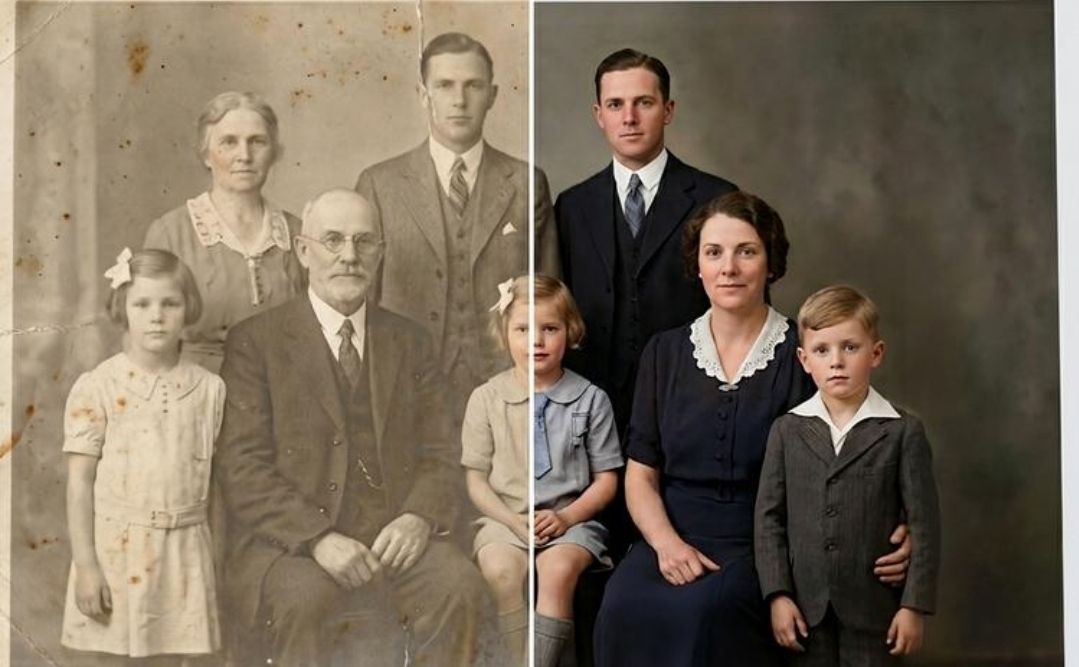
৮. পুরোনো ছবি Restore করার Prompt
পুরোনো পারিবারিক ছবি কিংবা অনেক দিনের স্মৃতিময় ছবি পরিষ্কার করতে চাইলে এই Prompt ব্যবহার করতে পারেন।
Prompt:
“Restore this old photograph while preserving the original person's identity and facial characteristics. Carefully reduce scratches, dust, noise, fading, and image damage. Improve clarity and contrast without inventing or changing facial features. Keep the original face shape, eyes, nose, lips, expression, and age appearance as faithful to the source as possible. Do not beautify, modernize, or reconstruct the face beyond the visible evidence.”
কখন ব্যবহার করবেন?
- পুরোনো পারিবারিক ছবি পরিষ্কার করতে।
- ঝাপসা বা ক্ষতিগ্রস্ত ছবি পুনরুদ্ধারে।
- স্মৃতিময় ছবির মান উন্নত করতে।
সতর্কতা: ছবিতে মুখের অনেক অংশ নষ্ট হয়ে গেলে AI অনুমান করে নতুন ডিটেইল তৈরি করতে পারে। তাই গুরুত্বপূর্ণ ঐতিহাসিক বা পারিবারিক ছবির ক্ষেত্রে ফলাফল মূল ছবির সঙ্গে মিলিয়ে দেখুন।
৯. মুখ ঠিক রেখে Travel Photography তৈরির Prompt
আপনার সাধারণ ছবিকে পাহাড়, সমুদ্র কিংবা সুন্দর কোনো পর্যটনস্থলের ছবির মতো দেখাতে চাইলে এই Prompt ব্যবহার করতে পারেন।
Prompt:
“Transform the environment of this photo into a beautiful travel photography scene. Preserve the person's exact identity, face, facial proportions, skin tone, expression, hairstyle, and body proportions. Keep the person recognizable and unchanged. Improve the surrounding scenery, natural lighting, color balance, perspective, and realistic shadows. Ensure the subject blends naturally into the environment without changing their facial features.”
কখন ব্যবহার করবেন?
- পাহাড় বা সমুদ্রের ব্যাকগ্রাউন্ড তৈরি করতে।
- ভ্রমণভিত্তিক সোশ্যাল মিডিয়া কনটেন্টে।
- ট্রাভেল ব্লগের পোর্ট্রেট ছবিতে।
AI দিয়ে এমন ছবি তৈরি করলে সেটিকে বাস্তব ভ্রমণের ছবি বলে উপস্থাপন না করাই ভালো, যদি ঘটনাটি সত্যি না হয়ে থাকে।
১০. Face Lock + Maximum Realism: সবচেয়ে গুরুত্বপূর্ণ Master Prompt
এবার থাকছে এমন একটি Master Prompt, যেটি বিভিন্ন ধরনের ফটো এডিটিংয়ের সময় ব্যবহার করতে পারবেন। বিশেষ করে যখন মুখের পরিচয় ধরে রাখা আপনার প্রধান লক্ষ্য।
Prompt:
“Edit the uploaded image with maximum identity preservation and photorealism. The person in the source image must remain clearly recognizable as the same individual. Preserve the original facial identity, face shape, facial proportions, eyes, eyebrows, nose, lips, jawline, skin tone, age appearance, and natural expression. Do not replace, regenerate, beautify, reshape, or reinterpret the face.
Make only the specific changes requested: [DESCRIBE YOUR EDIT HERE]. Keep all unrequested facial and body details unchanged. Maintain realistic skin texture, natural lighting, consistent shadows, accurate anatomy, and photographic detail. Avoid face morphing, artificial skin, exaggerated features, and identity drift. If a requested edit would require changing the person's face, prioritize preserving the original face.”
কীভাবে ব্যবহার করবেন?
Prompt-এর [DESCRIBE YOUR EDIT HERE] অংশে নিজের প্রয়োজন লিখুন।
উদাহরণ:
- “Replace the background with a modern office.”
- “Change the clothing to a formal black suit.”
- “Improve lighting and image sharpness.”
- “Create a cinematic portrait with soft evening light.”
এভাবে একটি Master Prompt বারবার ব্যবহার করে বিভিন্ন ধরনের এডিটিংয়ের জন্য নির্দেশনা তৈরি করতে পারবেন।
Bonus: AI Photo Edit করার সময় যে ৭টি নিয়ম মনে রাখবেন
শুধু Prompt ভালো হলেই সব সময় নিখুঁত ফলাফল পাওয়া যায় না। নিচের নিয়মগুলো অনুসরণ করলে ভালো ফল পাওয়ার সম্ভাবনা বাড়তে পারে।
১. পরিষ্কার মূল ছবি ব্যবহার করুন: মুখ যত পরিষ্কার দেখা যাবে, AI-এর জন্য মূল বৈশিষ্ট্য ধরে রাখা তত সহজ হতে পারে।
২. Face Preservation নির্দেশনা যোগ করুন: “Preserve the original facial identity” এবং “Do not alter facial features”—এই ধরনের স্পষ্ট নির্দেশনা ব্যবহার করুন।
৩. একবারে একটি পরিবর্তন করুন: প্রথমে ব্যাকগ্রাউন্ড, পরে আলো, এরপর প্রয়োজনে পোশাক পরিবর্তন করুন।
৪. Mask বা Inpainting ব্যবহার করুন: নির্দিষ্ট অংশ এডিট করার সুযোগ থাকলে শুধু সেই অংশ নির্বাচন করুন।
৫. Reference Image সুবিধা ব্যবহার করুন: টুলে পরিচয় ধরে রাখার জন্য Reference Image বা Identity Preservation সুবিধা থাকলে সেটি কাজে লাগান।
৬. অতিরিক্ত Beauty Filter এড়িয়ে চলুন: “Flawless skin”, “perfect face” বা “extreme beauty enhancement”-এর মতো নির্দেশনা অনেক সময় মুখের স্বাভাবিক বৈশিষ্ট্য বদলে দিতে পারে।
৭. প্রতিবার ফলাফল যাচাই করুন: AI-এর তৈরি ছবির চোখ, নাক, ঠোঁট, দাঁত, কান ও মুখের গঠন মূল ছবির সঙ্গে মিলিয়ে দেখুন।
কোন AI টুলে এই Prompt ব্যবহার করবেন?
এই ধরনের Prompt বিভিন্ন AI-ভিত্তিক ইমেজ এডিটরে পরীক্ষা করা যায়। তবে প্রতিটি টুলের সক্ষমতা ও পরিচয় ধরে রাখার মান এক নয়।
- ChatGPT Images: আপলোড করা ছবির নির্দিষ্ট পরিবর্তনের নির্দেশনা দিতে পারেন।
- Adobe Photoshop-এর Generative Fill: নির্বাচিত অংশে পরিবর্তন আনতে কাজে লাগে।
- Google Gemini-এর ইমেজ এডিটিং সুবিধা: ছবি ও নির্দেশনা অনুযায়ী বিভিন্ন ধরনের সম্পাদনা করতে ব্যবহার করা যায়।
- অন্যান্য AI Photo Editor: Reference Image, Face Preservation বা Inpainting সুবিধা আছে কি না, দেখে নিতে পারেন।
কোনো টুলই প্রতিটি পরিস্থিতিতে শতভাগ মুখ অপরিবর্তিত রাখার নিশ্চয়তা দেয় না। একই Prompt দিয়েও ভিন্ন ফলাফল আসতে পারে।
শেষ কথা
AI দিয়ে ছবি এডিট করার মূল উদ্দেশ্য শুধু ছবিকে সুন্দর করা নয়, নিজের পরিচিত চেহারাটিও ধরে রাখা। তাই প্রতিবার “Make it beautiful” লেখার পরিবর্তে কী পরিবর্তন চান এবং কোন বিষয়গুলো অপরিবর্তিত রাখতে চান, তা পরিষ্কারভাবে উল্লেখ করুন।
ব্যাকগ্রাউন্ড পরিবর্তন, প্রফেশনাল পোর্ট্রেট, সিনেমাটিক লুক কিংবা Natural Skin Retouch—যে ধরনের এডিটিংই করুন না কেন, মূল মুখের পরিচয় অক্ষুণ্ণ রাখার নির্দেশনাটি Prompt-এর শুরুতেই দেওয়ার চেষ্টা করুন।
আর একটি বিষয় মনে রাখবেন: AI-কে নতুন মুখ তৈরি করতে বলবেন না; আপনার আসল ছবিটিকেই উন্নত করতে বলুন।
এই ১০টি Powerful Prompt নিজের ছবিতে পরীক্ষা করে দেখুন। আপনার ব্যবহৃত AI টুল অনুযায়ী সামান্য পরিবর্তন করেও ভালো ফলাফল পেতে পারেন।
আপনার কাছে কোন AI Photo Editor সবচেয়ে ভালো কাজ করে? আর মুখ অপরিবর্তিত রাখার জন্য কোন Prompt সবচেয়ে কার্যকর হয়েছে? কমেন্টে আপনার অভিজ্ঞতা জানাতে পারেন।